
The Services Portal lets you order services on their own, without making a reservation first. Think of catering, flowers, or office equipment. This article walks you through placing an order step by step.
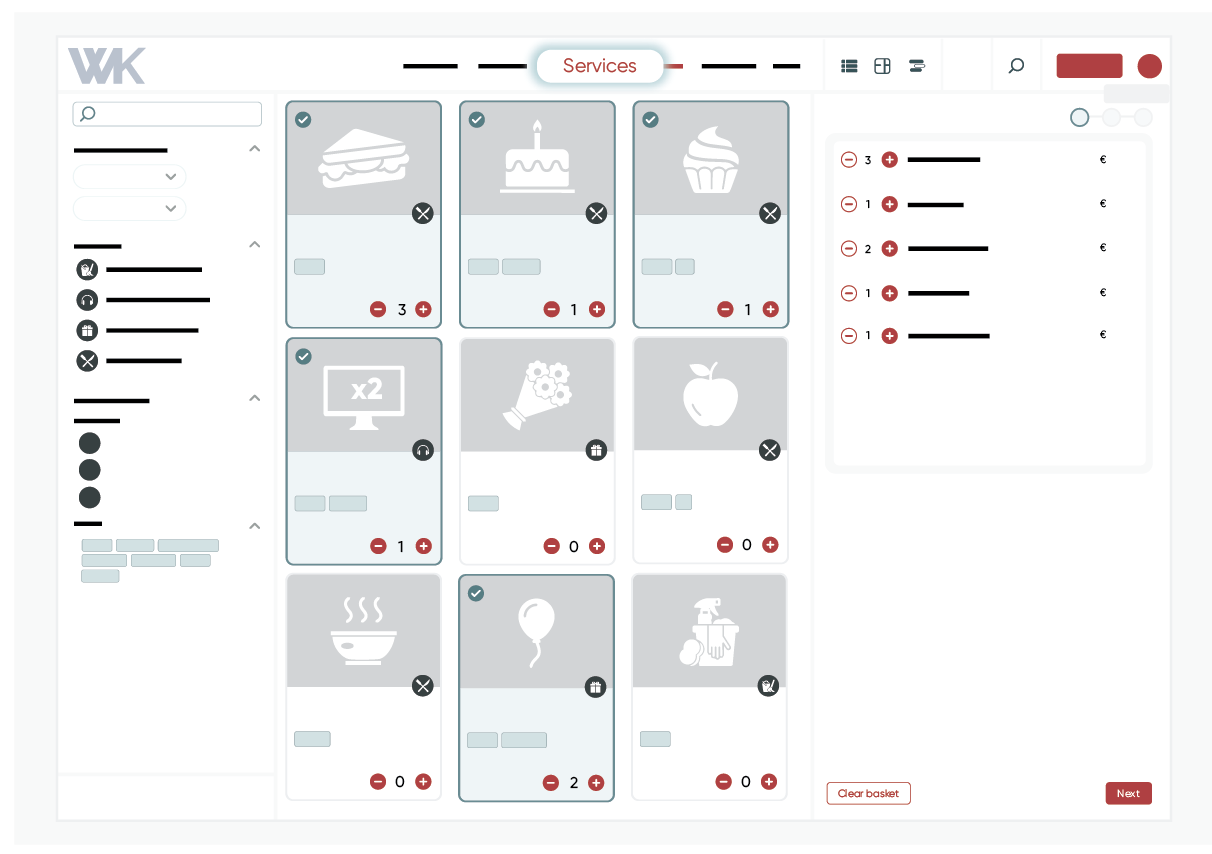
- Click Services in the header to see all available services.
- Use the filters on the left to narrow down the list.
- Select the service or services you want to order.
- Click the expand icon on the right side of the page to view your order.
- When you’re happy with your order, click Next.
- In the pop-up, choose a pickup location, date, and time from the dropdown menus, then click Next. Only services available for that time slot will be shown.
- Review your order: check the date, time, pickup location, and selected services. Then click Place Order to confirm.
- A confirmation page appears with the details of your order.
Go to Reservations in the header and open the Orders tab. Here you can see all your orders and their details, and edit or cancel them.
Interested in our Services Portal, or do you still have questions? Don’t hesitate to contact our team.