
Legend assets
In the map and list view, individual assets such as a single desk or room are shown as a dot, and each dot has its own meaning. You may also see zones: areas that cover multiple assets at once. Below we explain what the different dots and zones mean.
- Green: a green dot means that the workplace/room is free and is currently available for reservation.
- Orange: an orange dot means that the workplace/room is currently free, but a reservation is approaching. The dot turns orange 20 minutes before a reservation starts.
- Red: a red dot means that a workplace/room is currently reserved and occupied. If the place is not reserved, but the dot is still red, this is because a user is still checked in at this workplace/room.
- Grey: a gray dot means that the workplace/room is blocked and cannot be reserved.
- Black: A black dot means that the system cannot retrieve the correct status of the workplace/room. If you encounter a black dot, please contact the contact person within your organization.
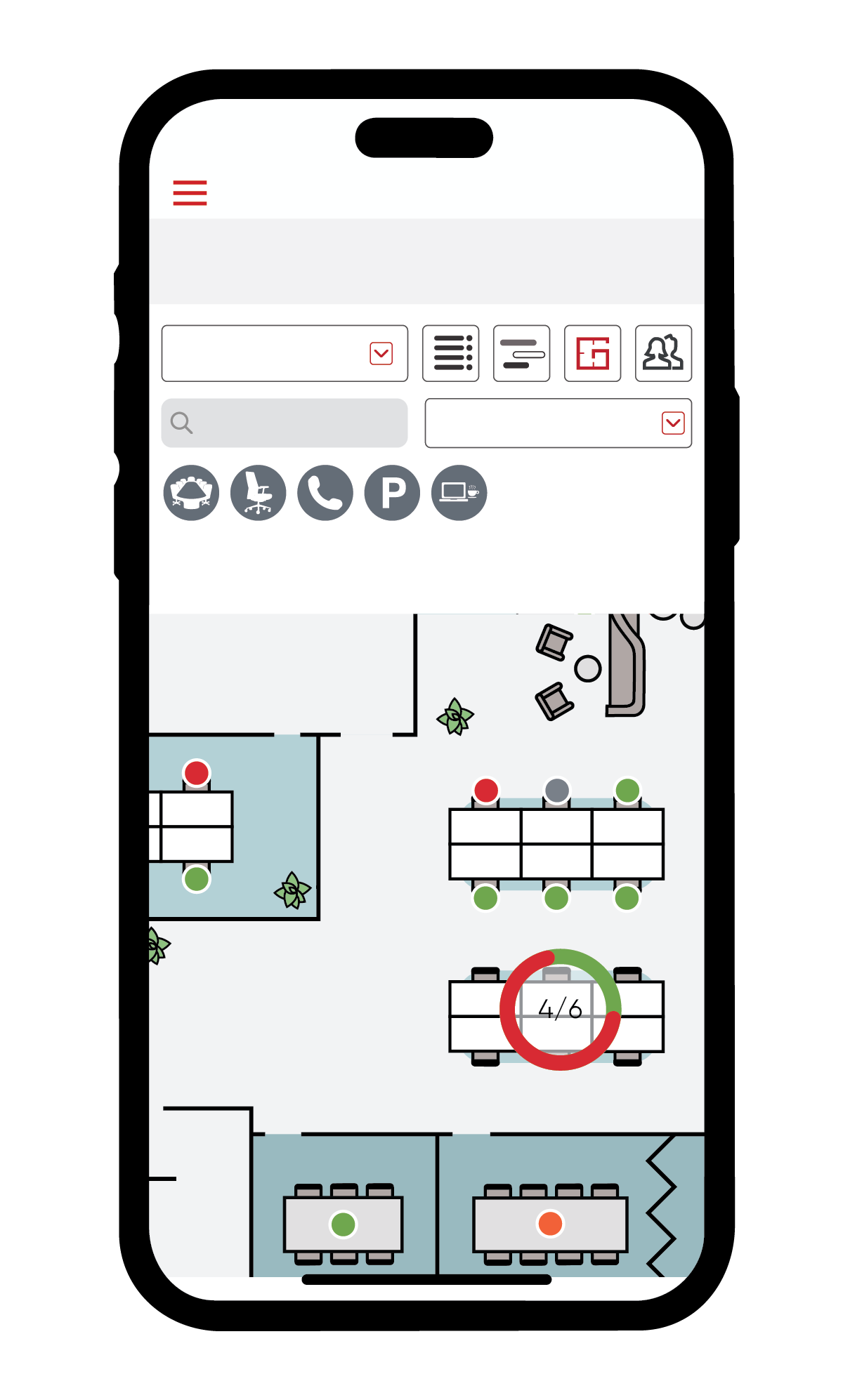
Note: It is also possible that a workplace/room does not have a bubble. This is because this workplace/room may only be reserved by a specific group of users. The dot will therefore not be visible to users who fall outside this group.
Zones
It is also possible to reserve assets via a zone, in addition to individual assets. With a zone, you can reserve a spot until the maximum number of spots is met. It makes no difference where you use this zone in the end. The symbol of a zone indicates how many workplaces are still available within the zone based on the colors green/red and numbers.