
Custom colors allow you to control how reservations are displayed in the Reservations view in officeAdmin. By assigning a specific color to each reservation type, planners can quickly distinguish between different kinds of bookings, such as private reservations, VIP meetings, online meetings, booking requests, and regular reservations.
This makes the planner easier to scan and helps users understand the schedule at a glance.
Availability
Custom colors in the reservations view are currently available only for Enterprise subscriptions.
If you’d like to upgrade or need more information, please contact our team.
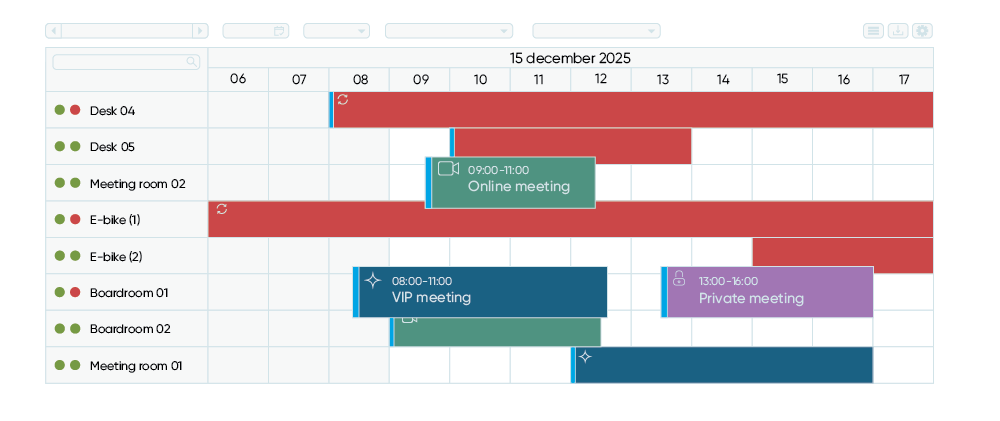
How to add custom colors to the planner?
- Open OfficeAdmin
- Go to Settings
- Select Properties
- Choose Add
- Select Booking palette
- In the key–value editor, define a color for each booking type
- Use valid color values (for example: hex codes such as #FF5733).
- Select Add.
- Click Save to apply your changes
Once saved, the selected colors will immediately be used in the reservations view.
How custom colors work?
Each reservation type can be assigned its own color. When a reservation matches one or more criteria, the planner applies the color based on the following priority order (highest priority first):
- Booking request
- VIP meeting
- Online meeting
- Private meeting
- Default reservation
Example: If a reservation is marked as both VIP and Private, the VIP color will be shown in the planner.