
When using Officebooking together with an integrated calandar, it is important to check whether reservations are being synchronized correctly with the connected calendar. For example, due to the differences in storage and processing of meetings between Exchange Online (“Office 365”) and Officebooking, there may be events that can cause differences in the calendars.
For Admins and location managers who manage multiple reservations, integration filters make it easier to view and check multiple meetings at once. This allows you to quickly identify reservations associated with a specific integration and check their synchronization status.
Reservation integration filter
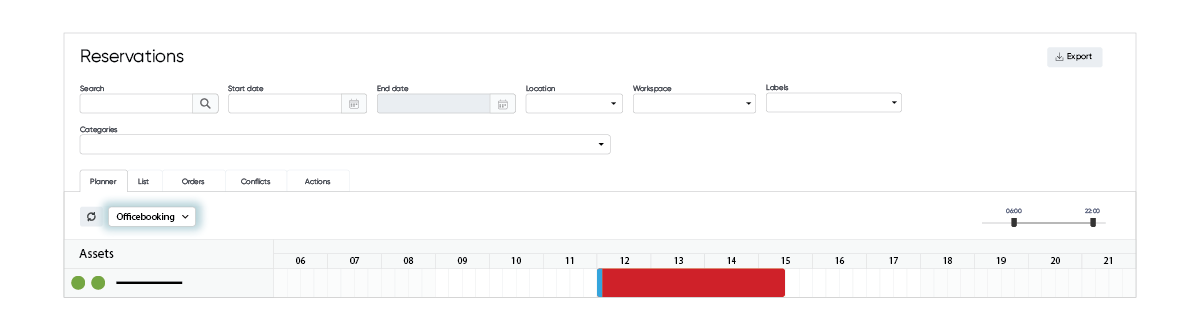
Within Reservations in OfficeAdmin, all reservations are displayed in a planner view. The Planner provides a day-by-day overview of all reservations for a specific location. By selecting the relevant integration, the Planner also displays meetings from the connected integration calendar of the meeting room. This makes it easy to compare meetings from the integration with reservations made in Officebooking. Meetings from the integration calendar are displayed in blue, while Officebooking reservations are displayed in red.
A small blue stripe on the left side of a reservation indicates that the reservation has been successfully synchronized with the connected calendar. This allows you to quickly identify which Officebooking reservations have been synchronized correctly.
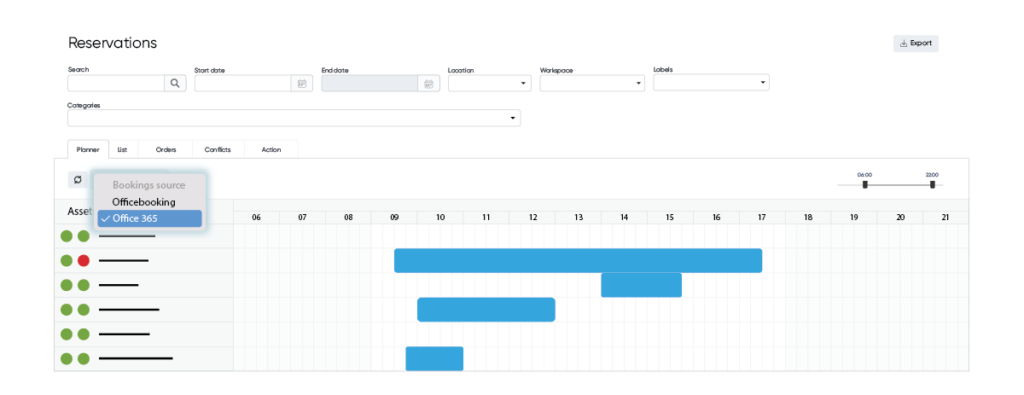
Switching between views is a great way to check if there are any differences that might explain differences between both calendars.
Asset integration filter
If a meeting does not appear to be synchronized correctly, you can check the synchronization status of the connection. Within assets in OfficeAdmin use the integrations filter to find the relevant asset and check its connection status. Each Asset in the list has a status indicator:
- Green: The connection is active and the subscription is working correctly.
- Orange: The connection has been lost and Officebooking is no longer receiving updates.
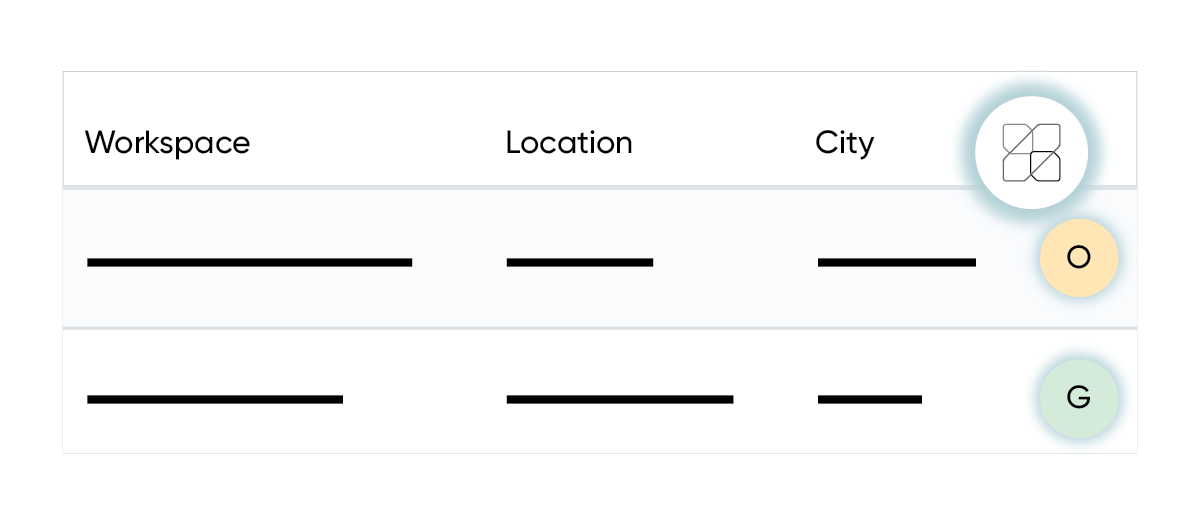
If a resource shows an orange status, edit the corresponding asset and select ‘Subscribe’ in the Microsoft Exchange Integration section. You should then receive a confirmation that the subscription was successful. If an error occurs or if the ‘Subscription failed’ message is displayed, the resource email address is most likely incorrect. You can check the correct address in your Microsoft 365 environment.
For more information about integration issues and troubleshooting, please refer to this article.