
The Company Log gives you an overview of all reservations synchronized between Office 365 and OfficeBooking, making it easy to track changes and find out why a reservation was not processed. You can find it under Settings by clicking the “Company Log” button. Here, you can search and filter on any O365 entry, such as cancellations or creation date, select a specific date, or search for a specific topic.
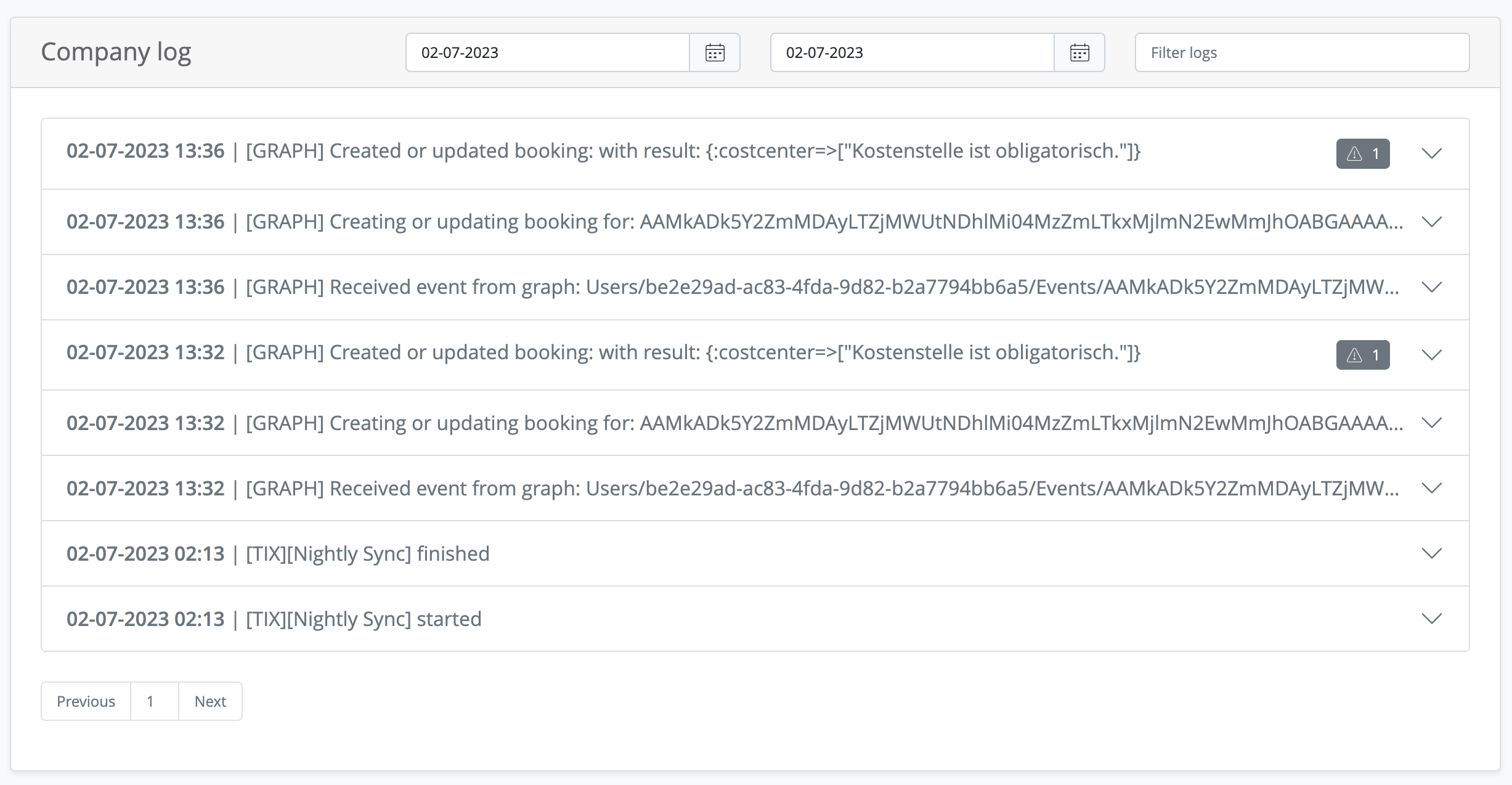
If an error occurs, the error message is shown in the title and in the reservation details:
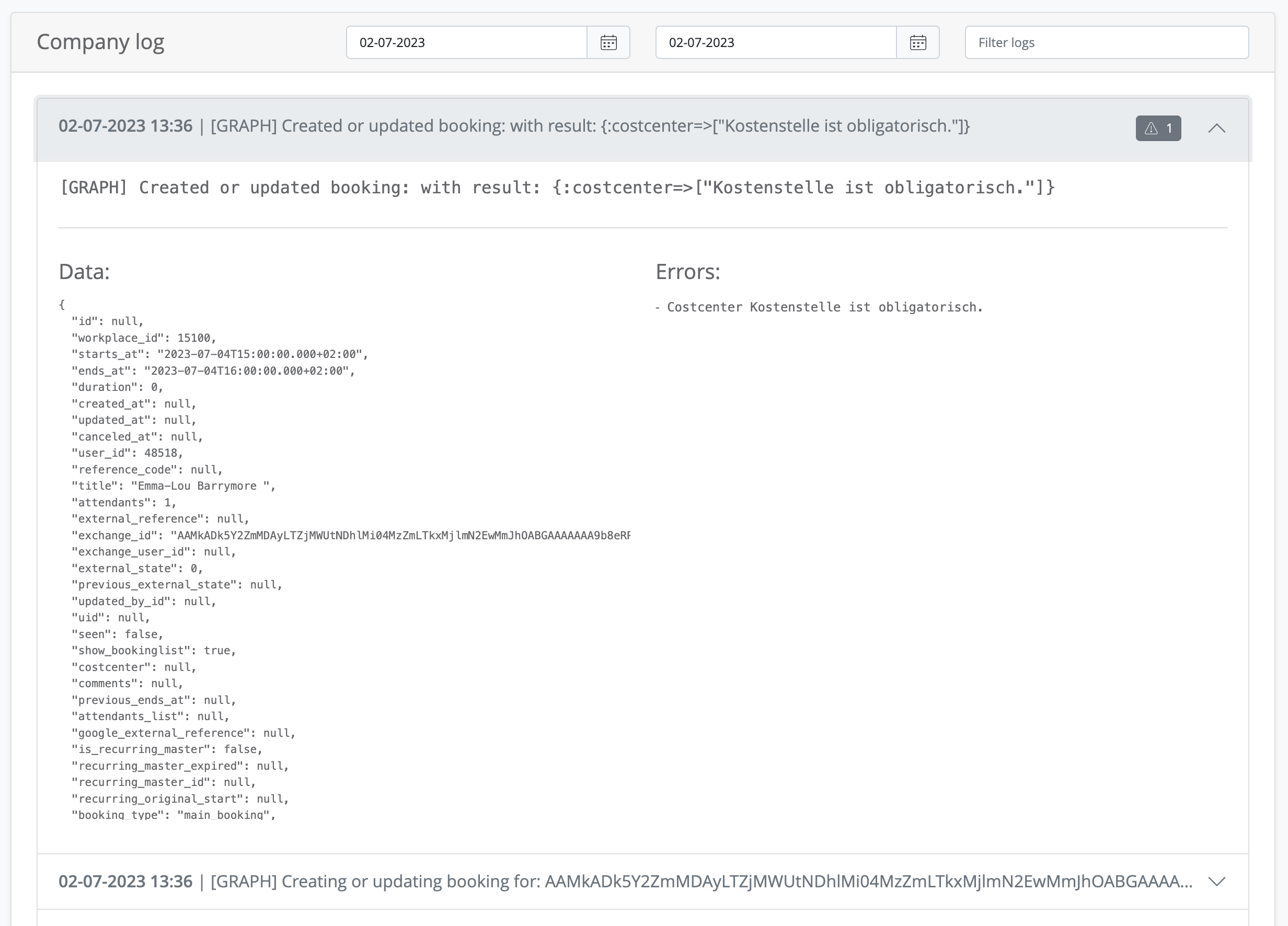
Example 1: mandatory cost center
In the example that is shown in the image, the reservation could not be created because the company has set a rule that a cost center is mandatory for all reservations. Since Outlook cannot process additional fields such as a cost center, the reservation cannot be created.
Example 2: different booking restrictions
A reservation can also fail when the user’s booking rights in OfficeBooking are more restrictive than what Outlook allows. For example, if a user may only book up to 14 days in advance in OfficeBooking, but creates a meeting in Outlook 30 days ahead, Outlook will accept the request while OfficeBooking rejects it. The reason is then shown in the Company Log, so you can see exactly why the reservation was not created.