Has a reservation changed or disappeared unexpectedly? The reservation history shows exactly what changed, when and by whom. There are two ways to view the history of a reservation.
Option 1: Directly from the reservation
Use this option when you know which reservation you are looking for and want a quick overview of its history.
- In OfficeAdmin, go to Reservations.
- Selectlist view.
- Click the ID of the reservation you want to view.
- Scroll down to Reservation history.
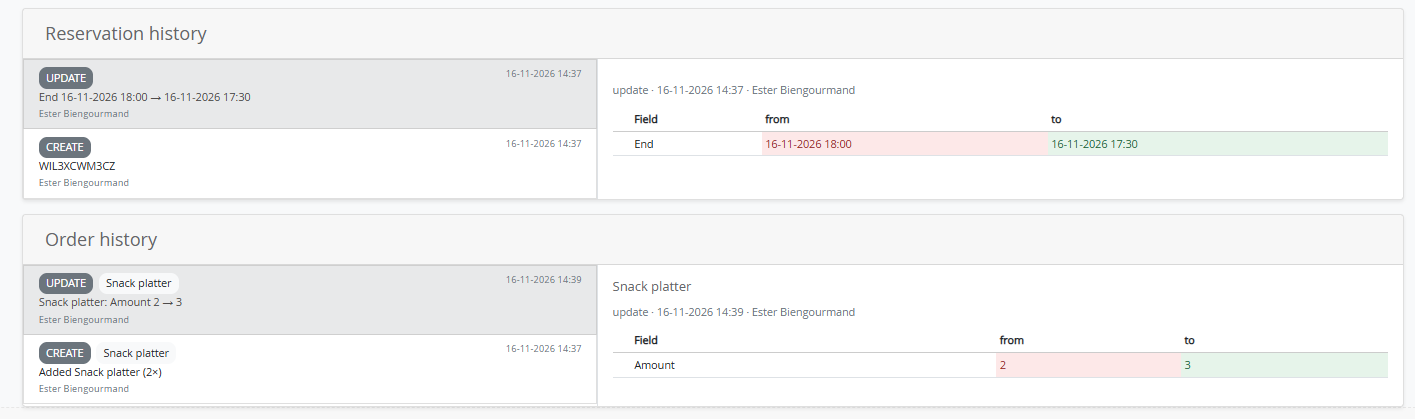
Here you can see every change made to this reservation, such as the start and end time, title, user, asset and number of participants. If the reservation includes an order, such as breakfast or catering, the Order history appears below it. It shows what was ordered and how the quantity and order status changed.
Option 2: Through the audit trail
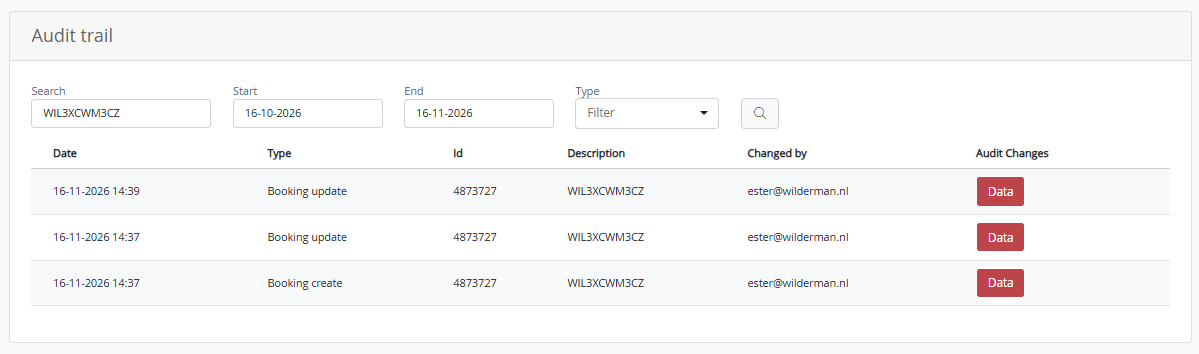
Use this option to search across a specific period, or when you can no longer find the reservation in the list.
- In OfficeAdmin, go to Settings.
- Select Audit trail.
- Set the Start and End dates around the time of the change.
- Enter a search term, such as the reservation reference.
- Click the search icon.
- Click Data to see exactly which fields were changed.
For each change, you can see when it was made, who made it and what exactly was changed. The type of change is also shown: Booking create for new reservations and Booking update for reservations that were adjusted or cancelled.