
Who can do this: Admins or Location Managers with edit permissions
Where: OfficeAdmin > Assets
Use asset-level opening hours when a specific room, desk, or device needs different availability than the location (for example, limited key pickup times, longer maintenance periods). Use collective closures to temporarily block reservations during planned periods of unavailability, such as maintenance, events, or holidays.
for a given date, custom hours override the asset’s default hours (and both remain within the location’s hours).
Steps
- Go to Assets and open the asset you want to configure.
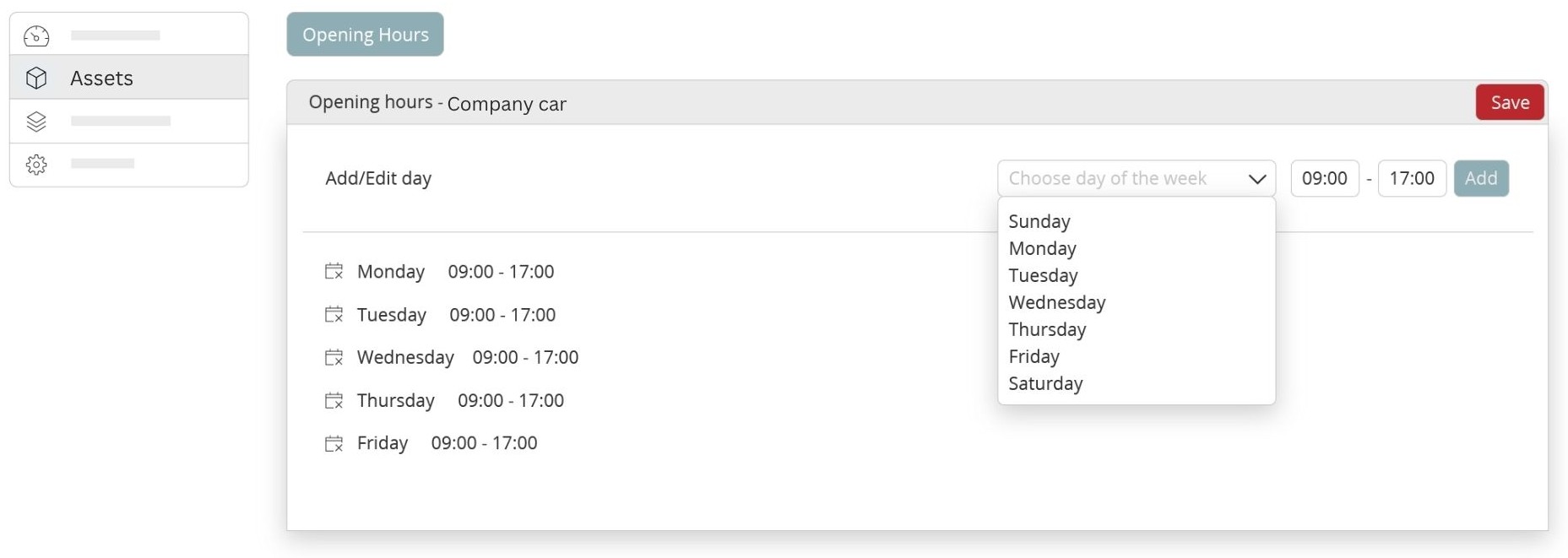
- Click Edit, then open the Opening Hours tab.
- Default opening hours: choose a weekday, set Opening time and Closing time, then click Add. You can add multiple intervals for the same day (for example, 10:00–12:00 and 13:00–17:00). To change a day’s hours, add a new entry for that weekday; the latest entry replaces the previous default for that day.
- Custom hours (exceptions): pick a specific date, set times, and click Add.
- Click Save.
Note: changes affect new availability going forward. Review any existing bookings that now fall outside the updated hours.
Examples
- A meeting room that requires a key, available only between 10:00–17:00.
- A parking space closed on a specific date due to building works.
- Equipment (for example, a projector) available only in the afternoons.
Troubleshooting
- This feature doesn’t work when Restrict reservations within opening hours is turned off.
- Asset still bookable when it should be closed? Check for custom hours on that date and confirm the location’s hours don’t keep it open unintentionally.
- Need the same pattern on multiple assets? Configure one asset, then replicate the intervals on others for consistency.