
Who can do this: Admins or Location Managers with edit permissions.
Where: OfficeAdmin > Assets
Collective closures prevent users from making reservations for an asset during a specified date and time window, or for the entire day. Use collective closures to temporarily block an asset for company events, maintenance, holidays, safety drills, or other planned periods of unavailability.
Collective closures override the assets default opening hours and any custom opening hours for that date.
Steps
- Go to Assets and select the asset you want to close.
- Click Edit, then open the Opening Hours tab.
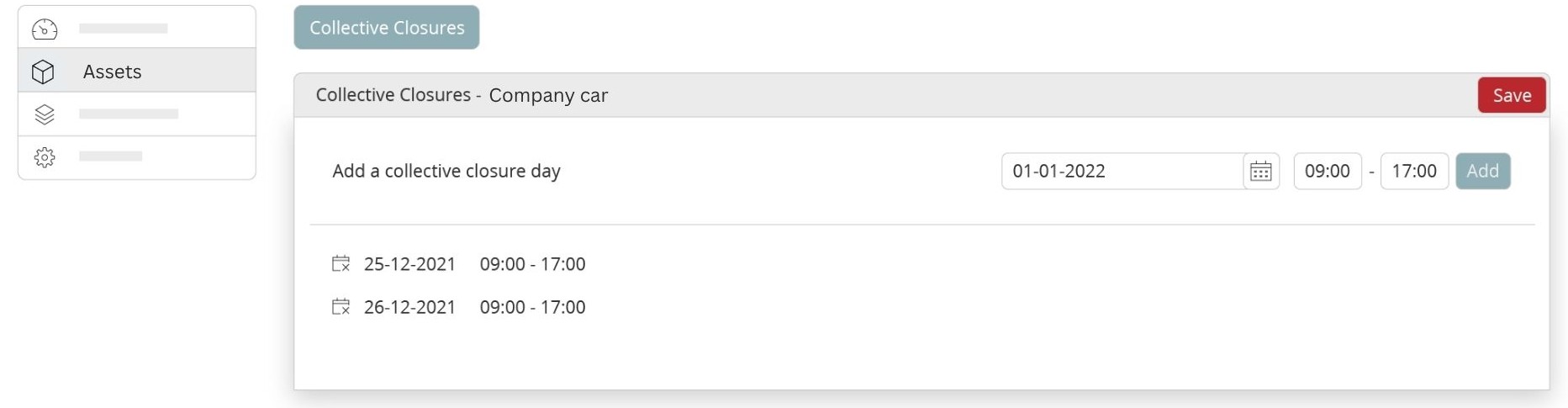
- Under Collective closures, pick a date.
- Choose the Start time and End time for the closure. You can add multiple closure windows on the same date if needed.
- Click Add to create the closure.
- Repeat for additional dates, then click Save.
Note: review existing reservations that fall inside a new closure and reschedule or cancel as needed.
Examples
- Company-wide meeting in the main hall: 12 October, 09:00–11:30 closed.
- Maintenance in meeting room 2.2: 18 November, 14:00–18:00 closed.
Tips and troubleshooting
- This feature doesn’t work when Restrict reservations within opening hours is turned off.
- Multiple days: Add a separate closure for each date.
- Can’t add a closure? Check your permissions for the location.
- Overlap: If you add overlapping closures, the system treats the combined window as closed.
- Need to reopen a period? Remove or edit the closure entry for that date and time, then save.
Was this article helpful?