
Who can do this: Admins or Location Managers with edit permissions
Where: OfficeAdmin > Locations
Collective closures block all reservations at a location for a specific date and time window (or the entire day). Use this for company events, maintenance, holidays, or safety drills. When a collective closure is active, users can’t book any assets in that location during the closed period.
Steps
- Go to Locations and open the location you want to configure.
- Click Edit, then open the Opening Hours tab.
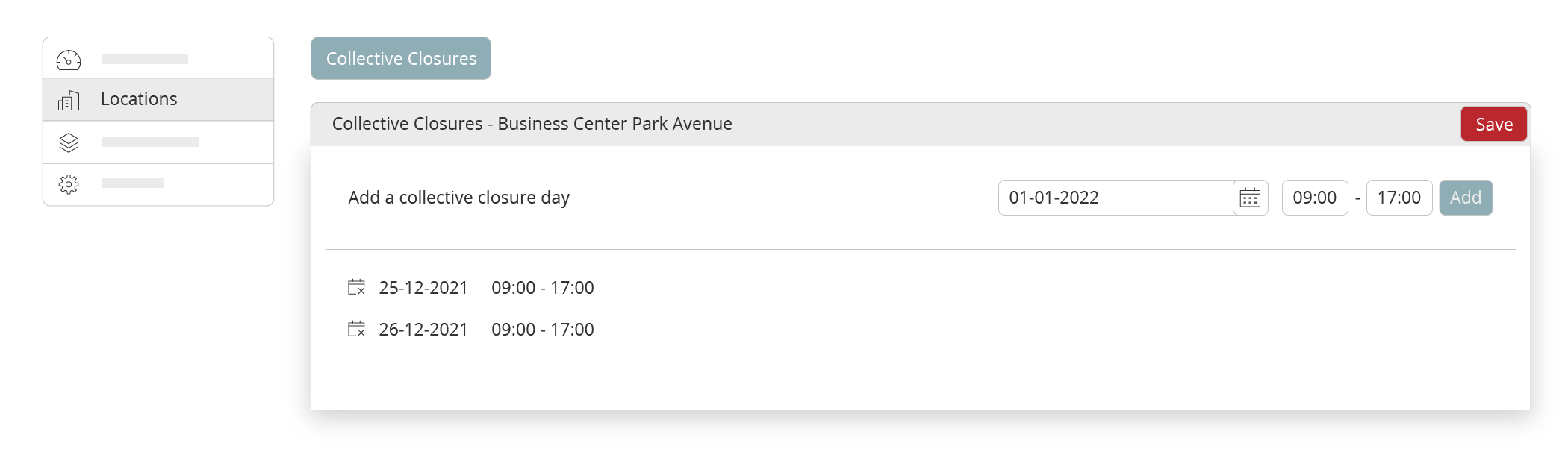
- Under Collective closures, pick a date.
- Choose the Start time and End time for the closure. You can add multiple closure windows on the same date if needed.
- Click Add to create the closure.
- Repeat for additional dates, then click Save.
How it works
- Overrides availability: Collective closures override the location’s default hours and any custom hours for that date.
- Applies to all assets: Assets inside the location are not bookable during the closure window—even if an asset has different hours.
- Existing bookings: Review existing reservations that fall inside a new closure and reschedule or cancel as needed.
- Timezone and format: Times use your organisation’s timezone in 24-hour format.
Examples
- Company-wide meeting: 12 October, 09:00–11:30 closed.
- Maintenance: 18 November, 14:00–18:00 closed.
- Holiday: 25 December, closed all day.
Tips and troubleshooting
- Collective closures don’t work when Restrict reservations within opening hours is turned off.
- Multiple days: Add a separate closure for each date.
- Can’t add a closure? Check your permissions for the location.
- Overlap: If you add overlapping closures, the system treats the combined window as closed.
- Need to reopen a period? Remove or edit the closure entry for that date and time, then Save.