
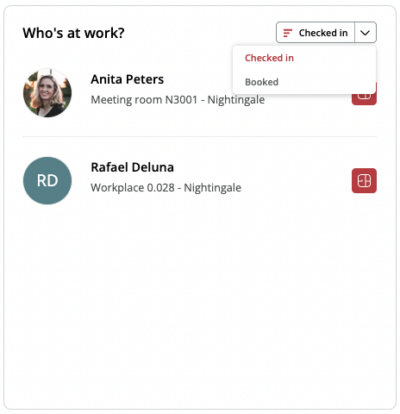
Who’s at work lets you see where and when your colleagues are in the office (except when a colleague has their visibility set off). This is based on check-ins or on reservations.
Within the web app, there are two different views where you can see who is currently or at a future time present in the office based on check-ins and reservations.
- This can be done via the Dashboard, under ‘Who’ at Work?’. Here you can view a list of employees across the entire organization (all locations).
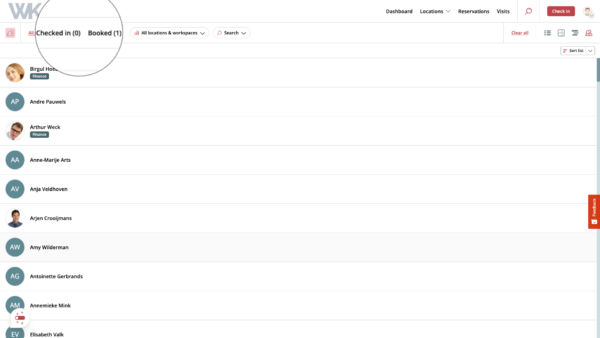
- Or this can be done via the colleagues icon, at the top right in your screen. Here you can view a complete list of employees.

Displaying roles
If there are colleagues with a certain important role, such as a firefighter or first responder, this role will be displayed with a label for this user in the list. This way you always know who is in the building in case of an emergency.
Who’s at Work via the floorplan
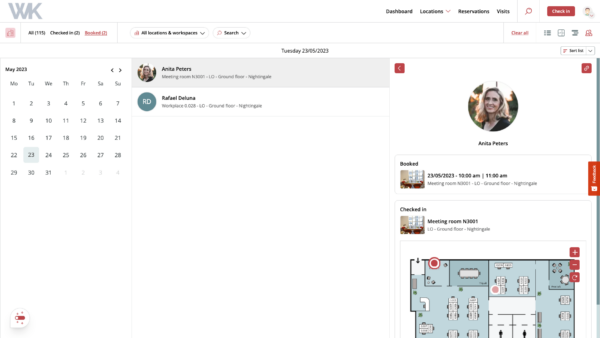
Once a colleague has checked in, you will be able to view their location in a map view (except when that colleague has their visibility set off). This map view and more details of a colleague’s reservation becomes visible when you click on their name.
Displaying future reservations
In addition, you can filter by sessions and reservations. When you filter by ‘has active check-ins’, you will only see colleagues who are currently checked in. This is a “live” snapshot. In addition to showing the current location of your colleagues based on active sessions, this list also exists based on reservations (‘Booked’). This allows you to see your colleagues’ reservations even if they are not checked in or for a future date. Select a date using the calendar to see who has reserved for that moment and potentially reserve a workspace for the same time.