
This article explains the available privacy settings and where to configure them.
Configure privacy through a device template
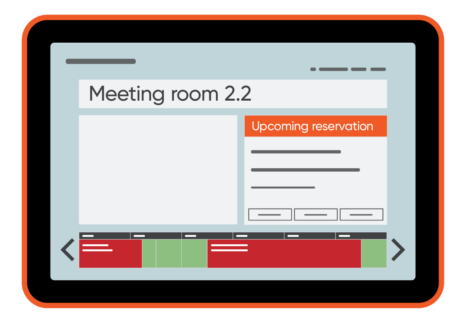
You can use device templates to determine which reservation details are displayed on a room booking panel.
- Go to OfficeAdmin.
- Select Devices.
- Select the device you want to configure and click Edit.
- Select Select template.
- Choose the template that matches your privacy requirements.
| Template | Reservation title | Host name |
|---|---|---|
| Classic | Title | First and last name when Visibility for user is enabled; otherwise, no name |
| Hide title | Reference code | First and last name when Visibility for user is enabled; otherwise, no name |
| Hide host name | Title | No host name |
The template settings override other default settings. For example, if a template is configured to hide reservation titles, the title will not be displayed even when the reservation itself is not marked as private.
Hide specific reservations or set a default per asset
The Show in bookinglist setting allows you to control whether reservations are displayed on digital signage. For example, you can show a reservation to colleagues and on room booking panels while hiding it from a digital signage display, such as the Officebooking Bookinglist or narrowcasting integrations.
Administrators and location managers can manage the Show in bookinglist setting for a specific reservation by navigating to OfficeAdmin > Reservations > List and selecting the box below the Display icon. This only affects the selected reservation.
The setting can also be configured as a default per asset by navigating to OfficeAdmin > Assets > Select Asset > Edit > Reservation settings. In this case, the setting applies to all reservations made for that asset, determining whether they are shown on digital signage by default.
| Setting | Reservation title | Host name |
|---|---|---|
| Show in bookinglist is disabled | Reservation is not shown | Reservation is not shown |
Other privacy settings to explore
There are two additional privacy settings that can affect what information is shown:
- Set a reservation to private: Reservations can be marked as private in Officebooking by location managers and administrators, or in Outlook by users. This hides the reservation title.
- Hide user visibility: Users can hide their personal visibility in their Officebooking settings. This prevents their name from being displayed.
| Setting | Reservation title | Host name |
|---|---|---|
| Private setting | Reference code | First and last name when Visibility for user is enabled; otherwise, no name |
| User visibility is hidden | Reference code | No host name |