
Why check in?
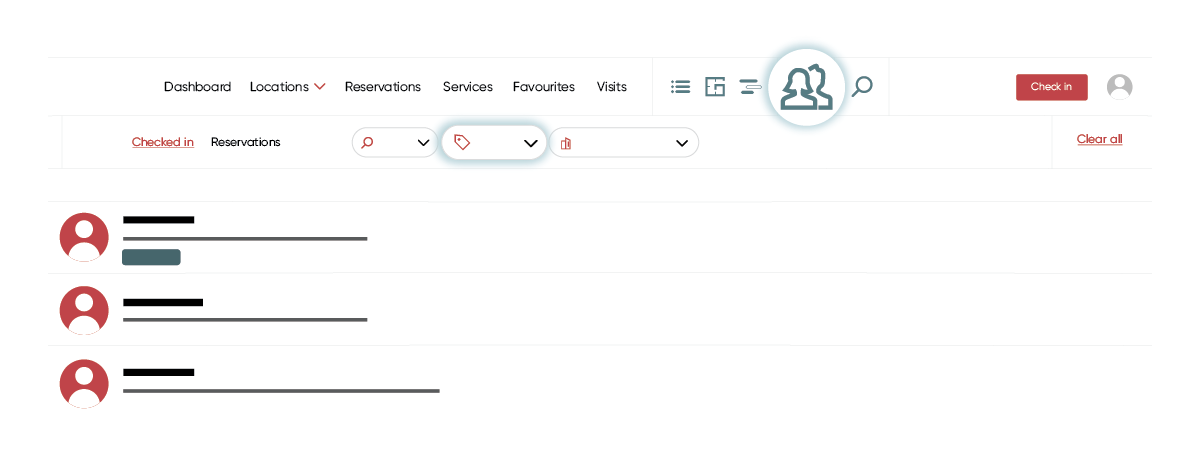
A reservation shows who plans to come to the office, while a check-in shows who is actually at the office. Therefore, checking in gives you more accurate occupancy data, you can compare real use with reservations. It also lets colleagues see who is in the office and where they are sitting, in the ‘Who’s at Work’ tab.
Checking in
A check-in starts a session. Sessions can start automatically, when an occupancy sensor detects that a desk or room is in use, or manually by the employee. In the mobile app, employees check in by scanning the QR code at their workplace or via their reservation. In the web app, they use the ‘Check in’ button next to their reservation under ‘Reservations’.
Check in only on your own reservation
You can require employees to check in only on a reservation they made themselves or were invited to. This prevents anyone from taking a desk or room reserved by someone else. You set this rule per user group, under ‘User groups’ in the menu. Read more about this setting in this article.
Checking out
Checking out ends the session and works the same way as checking in, in both the mobile app and the web app.
Automatic check-out
Employees often forget to check out. Officebooking can end sessions automatically in two ways, so your data stays accurate:
- At midnight. All running sessions end at midnight by default. Not active for your organisation (in this case, ongoing sessions will last longer than 24 hours)? Email support@officebooking.net and we will turn it on.
- At the end of the reservation. The session ends when the reservation ends, so it never lasts longer than booked. You activate this per desk or room under ‘Assets’.
No-show management
With the setting Automatically stop reservation, a reservation expires if no one checks in within the set time, helping you manage no-shows. For example, you can set it to 30 minutes for meeting rooms and 60 minutes for desks. You can configure this setting for individual desks or rooms under Assets, or use Bulk edit to apply it to multiple workplaces at once.